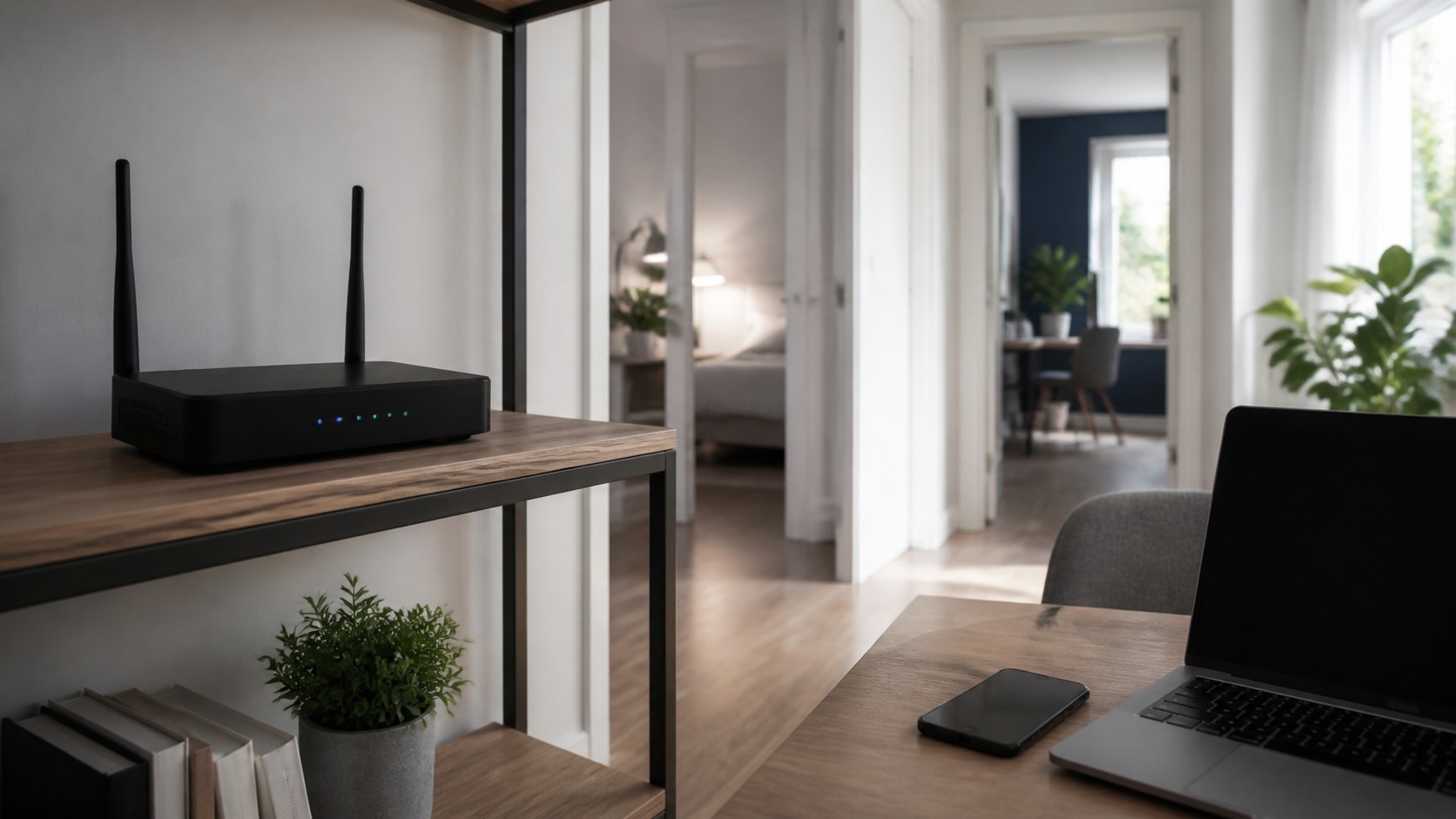
Your Wi-Fi network is more than a convenience. It is the invisible foundation of your digital life. Every video call, online purchase, smart camera, streaming session, cloud backup, gaming night, and connected device depends on it. But because Wi-Fi works silently in the background, many people forget that it can also become a target. Hackers do not always need to break into your laptop directly. Sometimes, they start with the network that connects everything together. An unsecured or poorly configured Wi-Fi network can expose personal data, slow down your connection, allow strangers to use your internet, or give attackers a path toward devices inside your home or business. The good news is that wireless network security does not have to be complicated. With the right settings, habits, and equipment choices, you can dramatically reduce your risk. Protecting your Wi-Fi from hackers is about creating layers of defense: strong encryption, smart passwords, updated routers, separate guest access, safer device management, and regular awareness.
A: Distance, walls, interference, and mesh backhaul are common causes.
A: Test with Ethernet first so you know whether the provider or Wi-Fi is the bottleneck.
A: No. It can be faster nearby, but it has shorter range through walls.
A: No. They help coverage only when nodes are placed where they can still hear each other well.
A: Yes. It is still the steadier choice for gaming, workstations, and backhaul.
A: Yes. Older clients can limit their own speed and sometimes use airtime inefficiently.
A: Usually one name is fine, but separate names can help troubleshoot stubborn devices.
A: Open, central, elevated, and away from metal or dense obstructions.
A: More household and neighborhood traffic can expose capacity limits.
A: Restart once, update firmware, then test near the router and in the slow room.
Why Wireless Network Security Matters
Wi-Fi feels private because it usually belongs to your home or office, but wireless signals do not stop neatly at your walls. They can travel into hallways, parking lots, neighboring apartments, yards, and nearby buildings. Anyone close enough to detect your network may be able to attempt a connection.
For most people, the greatest danger is not a movie-style hacker in a dark room. It is the combination of weak passwords, outdated router firmware, default settings, unsecured smart devices, and poor network habits. Attackers often look for easy opportunities. If your network is simpler to break into than the one next door, it becomes a more attractive target.
A secure Wi-Fi network protects your privacy, your devices, your financial information, your work files, and your peace of mind. It also helps keep your internet connection performing properly because unauthorized users cannot quietly consume your bandwidth.
Start with Strong Wi-Fi Encryption
The first major layer of wireless protection is encryption. Encryption scrambles the data moving between your devices and your router so outsiders cannot easily read it.
Older encryption standards such as WEP are no longer safe. WPA is also outdated. WPA2 has been widely used for years and remains acceptable for many networks, but WPA3 is the stronger modern option when supported by your router and devices.
If your router offers WPA3-Personal, use it. If some older devices cannot connect with WPA3, many routers provide a WPA2/WPA3 mixed mode. This allows newer devices to use stronger protection while maintaining compatibility with older equipment.
Avoid leaving your network open without a password. Even if you believe you have nothing sensitive to hide, an open Wi-Fi network can be misused by strangers, and their activity may appear to come from your internet connection.
Create a Powerful Wi-Fi Password
Your Wi-Fi password is one of the most important security controls you have. A weak password can undo the benefits of strong encryption.
Avoid short, obvious, or personal passwords. Names, birthdays, pet names, addresses, favorite teams, and common phrases are easy targets. A strong Wi-Fi password should be long, unique, and difficult to guess.
A good approach is to use a passphrase made from multiple unrelated words combined with numbers or symbols. The longer the password, the harder it becomes to crack. Your Wi-Fi password should not be reused for email, banking, shopping, or other accounts.
When you share your Wi-Fi password, treat it like a key. If too many people have it, or if someone you no longer trust still knows it, change it. Updating the password occasionally is a simple way to regain control over who can access your network.
Change the Default Router Admin Login
Many people change their Wi-Fi password but forget about the router’s admin login. These are not the same thing.
The Wi-Fi password lets devices join your network. The router admin password lets someone change router settings. If an attacker gains access to the admin panel, they may be able to change DNS settings, disable security features, open remote access, create new networks, or lock you out.
Routers often ship with default usernames and passwords. Some are unique, but many older models use predictable credentials such as “admin” and “password.” Change the router admin password immediately.
Use a strong, unique password for the admin account and store it securely. This one step can prevent a minor Wi-Fi problem from becoming a full network takeover.
Update Your Router Firmware
Your router is a small computer. Like any computer, it needs updates.
Router manufacturers release firmware updates to improve performance, add features, and fix security vulnerabilities. If your router has not been updated in years, it may contain known weaknesses that attackers can exploit.
Log in to your router settings and look for firmware update options. Many modern routers can update automatically. If automatic updates are available, enable them. If not, check manually several times a year.
If your router is so old that it no longer receives updates, consider replacing it. An outdated router can become the weakest link in your entire digital environment.
Rename Your Network Carefully
Your network name, also called the SSID, is what people see when they search for Wi-Fi. While the network name alone does not secure or expose your data, it can reveal useful information if chosen poorly.
Avoid using your full name, address, apartment number, business name, router model, or anything that identifies you personally. A network called “SmithFamily123MainStreet” gives away more than necessary.
Also avoid names that advertise the router brand or model. If attackers know exactly what hardware you use, they may search for known vulnerabilities or default settings related to that model.
Choose a simple, neutral network name that does not reveal personal details. Security often improves when you reduce the information available to strangers.
Use a Guest Network
A guest network is one of the most practical Wi-Fi security features available.
Instead of giving visitors access to your main network, create a separate guest Wi-Fi network. This allows guests to use the internet without connecting directly to your computers, smart home systems, printers, storage drives, or work devices.
Guest networks are especially useful for homes with frequent visitors, rental properties, small businesses, waiting rooms, and shared spaces. They are also ideal for devices you do not fully trust.
Make sure your guest network has its own strong password. If your router offers an option to block guest access to local network devices, enable it. This keeps guest traffic separated from your primary environment.
Separate Smart Home Devices
Smart home devices are convenient, but they can also introduce risk. Cameras, speakers, plugs, thermostats, appliances, doorbells, and lighting systems often stay connected 24/7. Some receive updates regularly, while others may not.
If possible, place smart home devices on a separate network or guest network. This helps limit damage if one device is compromised. For example, if a smart plug has a security weakness, separation can make it harder for attackers to reach your laptop or work files.
This strategy is especially helpful for devices from unknown brands, older devices, or products that no longer receive updates.
The goal is not to fear smart technology. The goal is to organize your network so one vulnerable device does not expose everything else.
Disable WPS
Wi-Fi Protected Setup, commonly called WPS, was designed to make connecting devices easier. Unfortunately, convenience can come with security trade-offs.
WPS often allows devices to connect by pressing a button or entering a short PIN. The PIN method has historically created security concerns because short codes are easier to attack than strong passwords.
If you do not need WPS, disable it in your router settings. Most modern devices can connect normally by entering the Wi-Fi password.
Turning off unused features is a smart security habit. The fewer unnecessary doors your router leaves open, the better.
Turn Off Remote Router Access
Some routers allow remote administration, meaning you can access router settings from outside your home network. While this may be useful for advanced users, most people do not need it.
If remote access is enabled and not properly secured, attackers may attempt to reach your router from the internet. That creates unnecessary exposure.
Check your router settings for remote management, remote administration, or web access from WAN. If you are not actively using it, turn it off.
Managing your router should usually happen only when you are connected to your own local network.
Watch Connected Devices
One of the simplest ways to detect suspicious activity is to review the list of devices connected to your router.
Most routers display connected devices in the admin panel or mobile app. Look for unfamiliar phones, laptops, cameras, or unknown device names. Some devices may appear with vague labels, so do not panic immediately, but investigate anything that seems out of place.
If you find suspicious devices, change your Wi-Fi password and restart the router. This forces every device to reconnect with the new credentials.
It is also wise to rename your own devices clearly, such as “Office Laptop” or “Living Room TV,” so you can recognize them quickly in the future.
Protect Your Devices Too
Wi-Fi security is not only about the router. Every connected device also matters.
Keep computers, smartphones, tablets, and smart devices updated. Use strong passwords or biometric locks. Install apps only from trusted sources. Avoid clicking suspicious links. Use reputable security software where appropriate.
A secure router cannot fully protect a compromised device. Likewise, secure devices are safer when connected to a well-protected network. The strongest approach combines both.
Think of your Wi-Fi network as a building. The router is the front gate, but every device is a room inside. Each one needs basic protection.
Be Careful with Public Wi-Fi
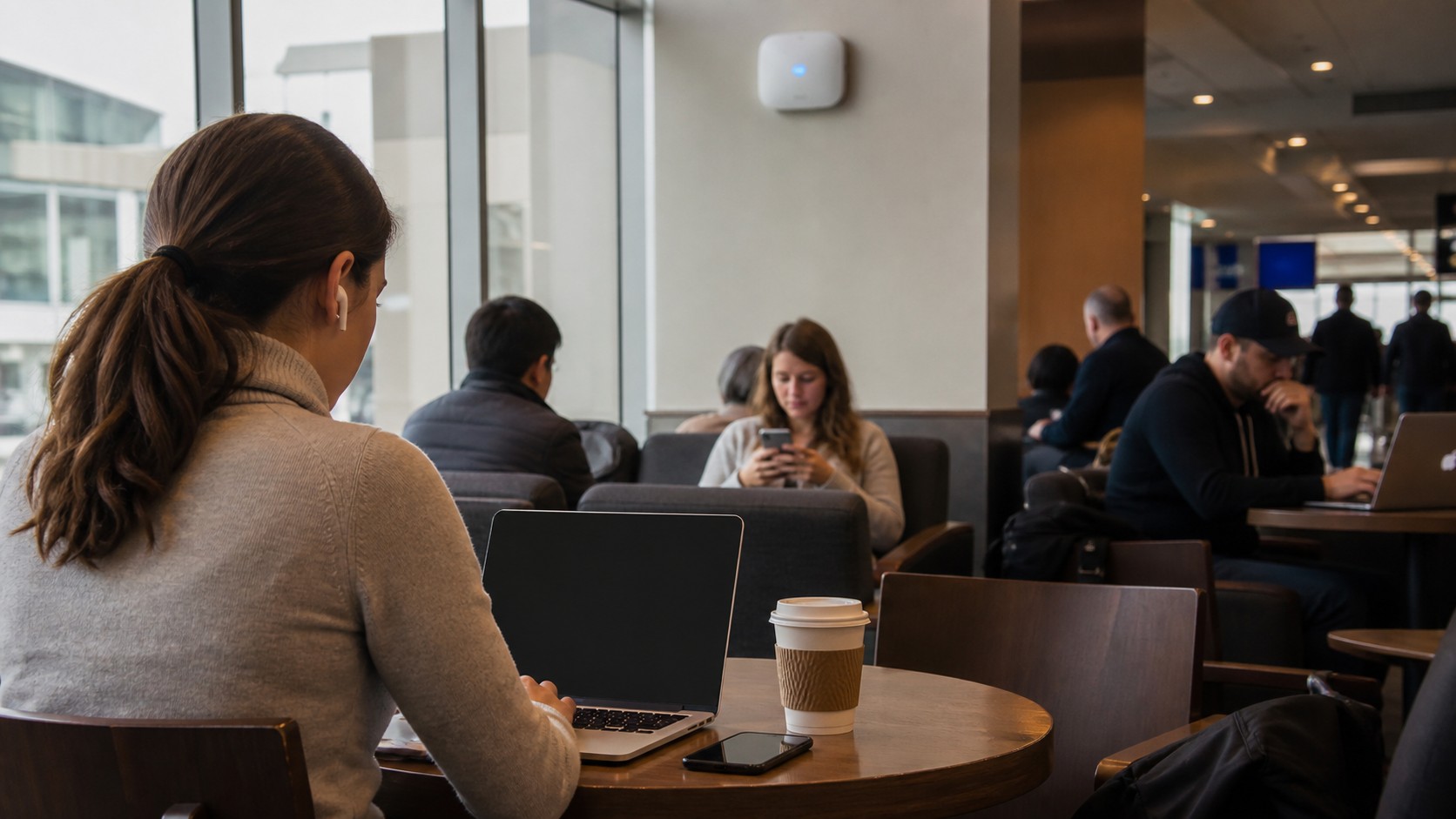
Public Wi-Fi networks in cafés, hotels, airports, libraries, and stores are convenient, but they are not always safe.
On public networks, you usually do not control the router, encryption, connected users, or security settings. Attackers may create fake networks with names that look legitimate, hoping people will connect.
Avoid accessing sensitive accounts on public Wi-Fi unless necessary. When possible, use your mobile hotspot for banking, work logins, or private information. A trusted VPN can add another layer of protection by encrypting traffic between your device and the VPN service.
Always verify the correct network name with staff before connecting in public places. A small moment of caution can prevent a major privacy problem.
Improve Physical Router Security
Physical access matters. If someone can reach your router, they may be able to reset it, connect by cable, press WPS buttons, or view printed default information.
Place your router in a secure location, especially in offices, rental properties, shared buildings, and customer-facing environments. Do not leave it where visitors can easily tamper with it.
For home users, this may simply mean keeping the router in a central but sensible location. For businesses, it may mean locking networking equipment in a cabinet or restricted area.
Wireless security is digital, but it still has a physical side.
Build a Routine Security Check
You do not need to obsess over your Wi-Fi every day. However, a simple routine can keep your network healthy.
Every few months, log in to your router and check for firmware updates. Review connected devices. Confirm that WPA2 or WPA3 encryption is enabled. Make sure guest networks are still configured correctly. Disable features you do not use. Update passwords when needed.
This kind of routine takes only a few minutes, but it helps prevent small oversights from becoming major problems.
Cybersecurity is not a one-time setup. It is an ongoing habit.
When to Replace Your Router
Even the best settings cannot save a router that is outdated, unsupported, or unreliable.
Consider replacing your router if it no longer receives firmware updates, does not support WPA2 or WPA3, frequently drops connections, cannot handle your number of devices, or lacks guest network features.
Modern routers offer better security tools, easier app-based management, stronger encryption options, automatic updates, and improved performance. For busy homes and small businesses, upgrading can improve both safety and speed.
A newer router is not automatically secure, but it gives you better tools to build a secure network.
Final Thoughts: Make Your Wi-Fi a Strong Digital Front Door
Your Wi-Fi network is the gateway to your connected world. It supports your work, entertainment, communication, security cameras, smart home devices, personal files, and private accounts. Protecting it is one of the most important steps you can take toward better digital safety.
Wireless network security does not require expert-level technical knowledge. Start with strong encryption. Use a powerful Wi-Fi password. Change the router admin login. Keep firmware updated. Use a guest network. Separate smart devices. Disable unnecessary features. Watch connected devices. Replace outdated equipment when needed.
Hackers often look for easy targets. When your Wi-Fi is properly secured, you make your network harder to access, harder to abuse, and easier to trust.
A safer network means more than better technology. It means confidence every time you connect.