How to Set Up a Wireless Network at Home (Step-by-Step Guide)
Setting up a wireless network at home is about more than plugging in a router. A good setup matches the internet plan, modem, router, Wi-Fi bands, password, device layout, and security settings to the way people actually use the home.
A: Distance, walls, interference, and mesh backhaul are common causes.
A: Test with Ethernet first so you know whether the provider or Wi-Fi is the bottleneck.
A: No. It can be faster nearby, but it has shorter range through walls.
A: No. They help coverage only when nodes are placed where they can still hear each other well.
A: Yes. It is still the steadier choice for gaming, workstations, and backhaul.
A: Yes. Older clients can limit their own speed and sometimes use airtime inefficiently.
A: Usually one name is fine, but separate names can help troubleshoot stubborn devices.
A: Open, central, elevated, and away from metal or dense obstructions.
A: More household and neighborhood traffic can expose capacity limits.
A: Restart once, update firmware, then test near the router and in the slow room.
Why This Topic Matters Now
Home wireless network setup matters because connectivity is no longer a background utility. Phones, homes, offices, vehicles, public services, media, payments, logistics, and AI systems all depend on networks that can carry traffic reliably and explain problems when service breaks.
The audience includes homeowners, renters, students, families, remote workers, gamers, smart-home users, and anyone installing or replacing a home router. Each group looks at the same network from a different angle. A consumer may care about price and coverage, a business may care about uptime and support, and a network team may care about capacity, routing, standards, and operations.
Home networks in 2026 often include phones, laptops, TVs, consoles, cameras, speakers, thermostats, tablets, printers, and work devices. Many homes also mix Wi-Fi 5, Wi-Fi 6, Wi-Fi 6E, and Wi-Fi 7 clients, so setup needs to balance modern features with older device compatibility.
The Core Idea In Plain Language
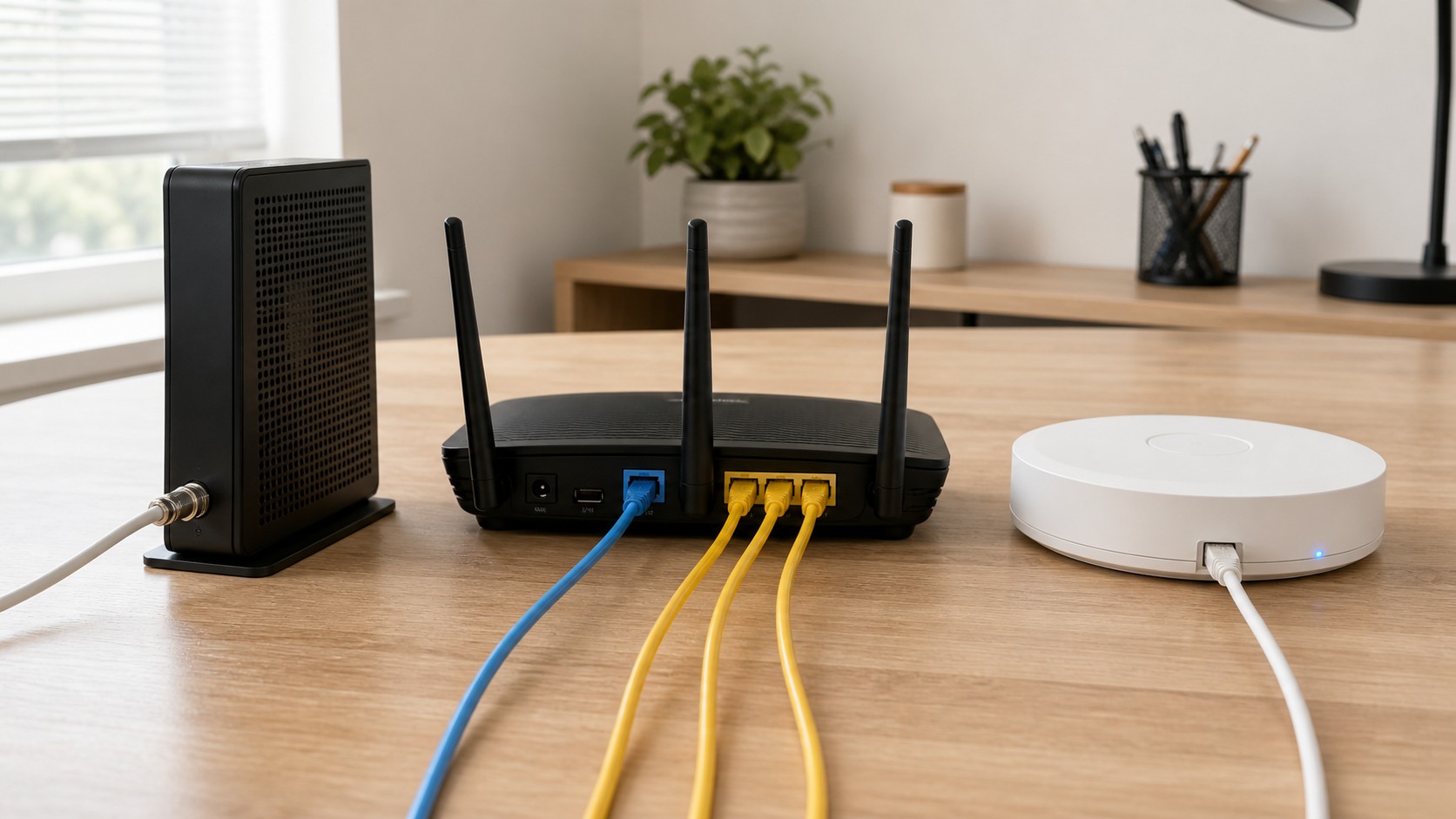
A home wireless network starts with the internet connection, then passes through a modem or gateway, router, access point, and local devices. The router assigns local addresses, manages Wi-Fi, applies security, and sends internet traffic toward the provider.
The important point is that telecom is a system of layers. Devices, radio access, fiber, switching, packet cores, internet exchanges, cloud platforms, billing systems, security controls, and customer support tools all shape the final experience. A problem in one layer can make the whole service feel weak.
That is why simple claims often miss the real issue. Faster speed does not always mean better calls. More coverage does not always mean better indoor performance. A larger carrier does not always mean better service in a specific neighborhood. The details matter.
What Happens Behind The Scenes
Behind every connection is a chain of decisions. The network has to identify the user, choose an access path, assign resources, move traffic, enforce policy, protect security, and keep the session stable as conditions change. Many of those decisions happen in milliseconds.
Radio conditions are especially variable. Distance from the tower, building materials, interference, weather, device antennas, frequency band, network congestion, and movement can all change performance. Two people on the same carrier can have different experiences because their devices and locations are not identical.
Transport and core systems matter just as much. A tower needs backhaul. A voice session needs signaling. A data session needs routing. A business service may need quality controls. A roaming device needs agreements between networks. Reliable telecom is built from cooperation across all of those pieces.
A Practical Example
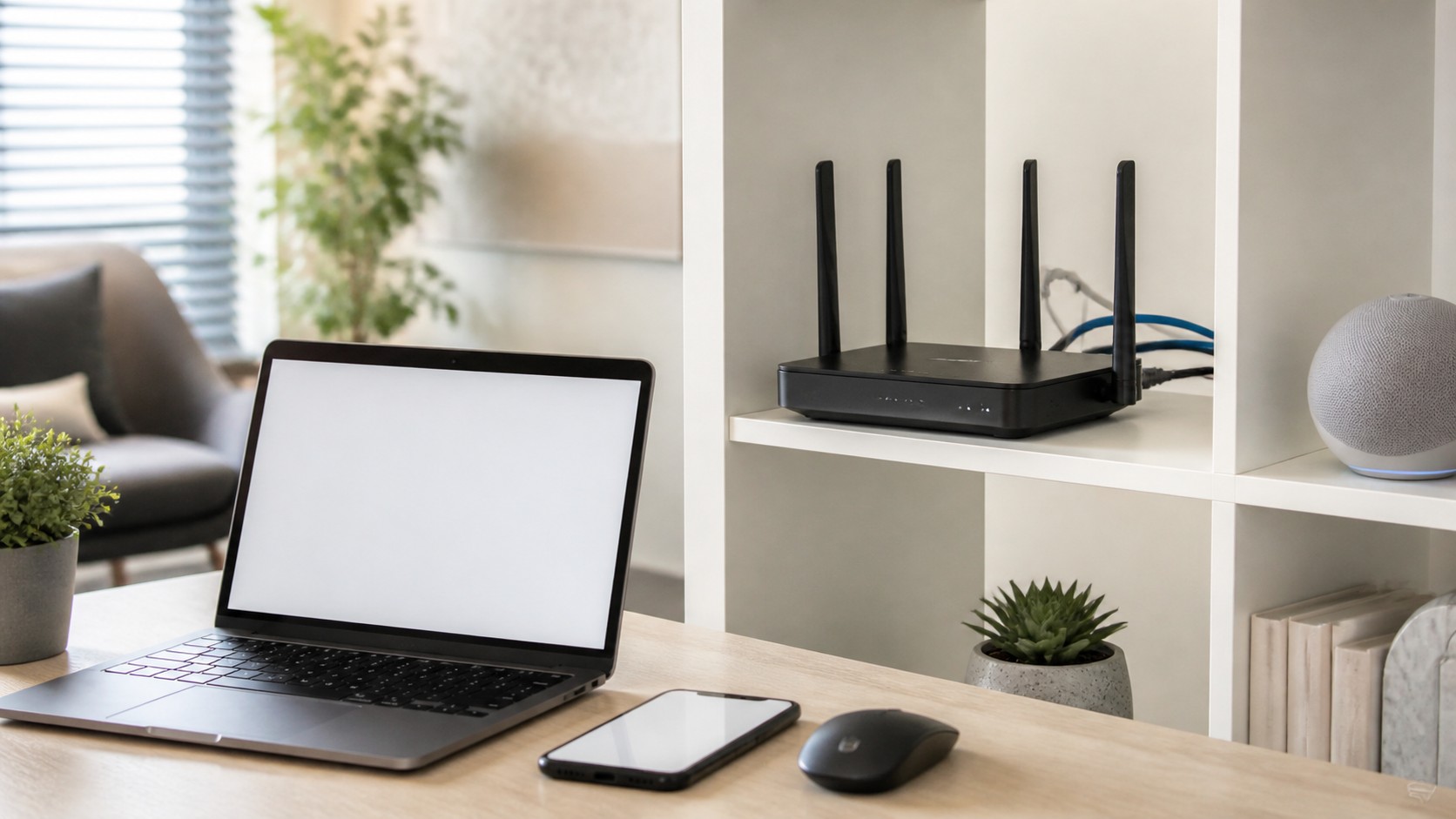
A family upgrading to fiber may still have weak upstairs Wi-Fi if the router stays in a basement corner. Moving the router, using Ethernet backhaul, or adding a well-placed mesh node can matter more than buying the most expensive plan.
Examples like this are useful because they show why telecom problems rarely have one cause. A slow connection might come from the phone, the local cell, the router, the backhaul link, the carrier core, a cloud service, or the destination network. Good troubleshooting narrows the path instead of guessing.
The same thinking helps buyers make better choices. A family choosing home internet, a company choosing a backup connection, and a city planning public connectivity all need to ask where service is most likely to fail and what backup exists when it does.
What Users Actually Notice
Most people notice telecom only when it fails. Dropped calls, buffering video, delayed messages, high ping, weak indoor signal, slow uploads, and confusing support create frustration because the network is supposed to disappear into daily life.
Good service feels uneventful. Calls connect, meetings stay clear, maps load, files sync, payments work, devices roam, and support teams can explain what happened when something goes wrong. That ordinary reliability is more valuable than a single impressive speed number.
Users also notice consistency. A connection that is fast at midnight but unstable during school pickup, commute hours, storms, or stadium events may not solve the real need. Telecom quality has to hold up under the conditions where people actually use it.
How Businesses Should Think About It
Businesses need to connect telecom choices to workflow. A retail store needs payment uptime. A clinic needs secure communication. A warehouse needs scanners and handhelds. A remote team needs stable video and cloud access. A field crew needs coverage where work actually happens.
That means the best plan is not always the fastest advertised plan. The better choice may be a service with stronger upload performance, a backup path, static addressing, better support, local coverage, device management, or a clearer service-level agreement.
Testing matters before a contract is signed. Businesses should test indoor locations, busy hours, failover behavior, voice quality, VPN performance, cloud applications, and support response. Real use reveals details that plan pages and coverage maps cannot show.
How Home And Mobile Use Overlap
Telecom decisions increasingly cross the line between home service and mobile service. A household may use fiber for work, Wi-Fi for phones, cellular backup for outages, hotspot data while traveling, and cloud voice or messaging across every device. The user experiences one connected life, even though several networks are involved.
This overlap makes local setup important. A strong mobile plan can still feel poor if indoor Wi-Fi is weak. A fast home connection can still disappoint if the router is placed badly or old devices cannot use newer standards. The best result usually comes from matching the outside connection, indoor network, devices, and plan limits.
Standards And Compatibility
Telecom standards matter because networks need many vendors, phones, towers, routers, chips, and software systems to work together. Standards bodies define how generations such as LTE, 5G, and 5G-Advanced communicate, hand off sessions, manage spectrum, and support new capabilities.
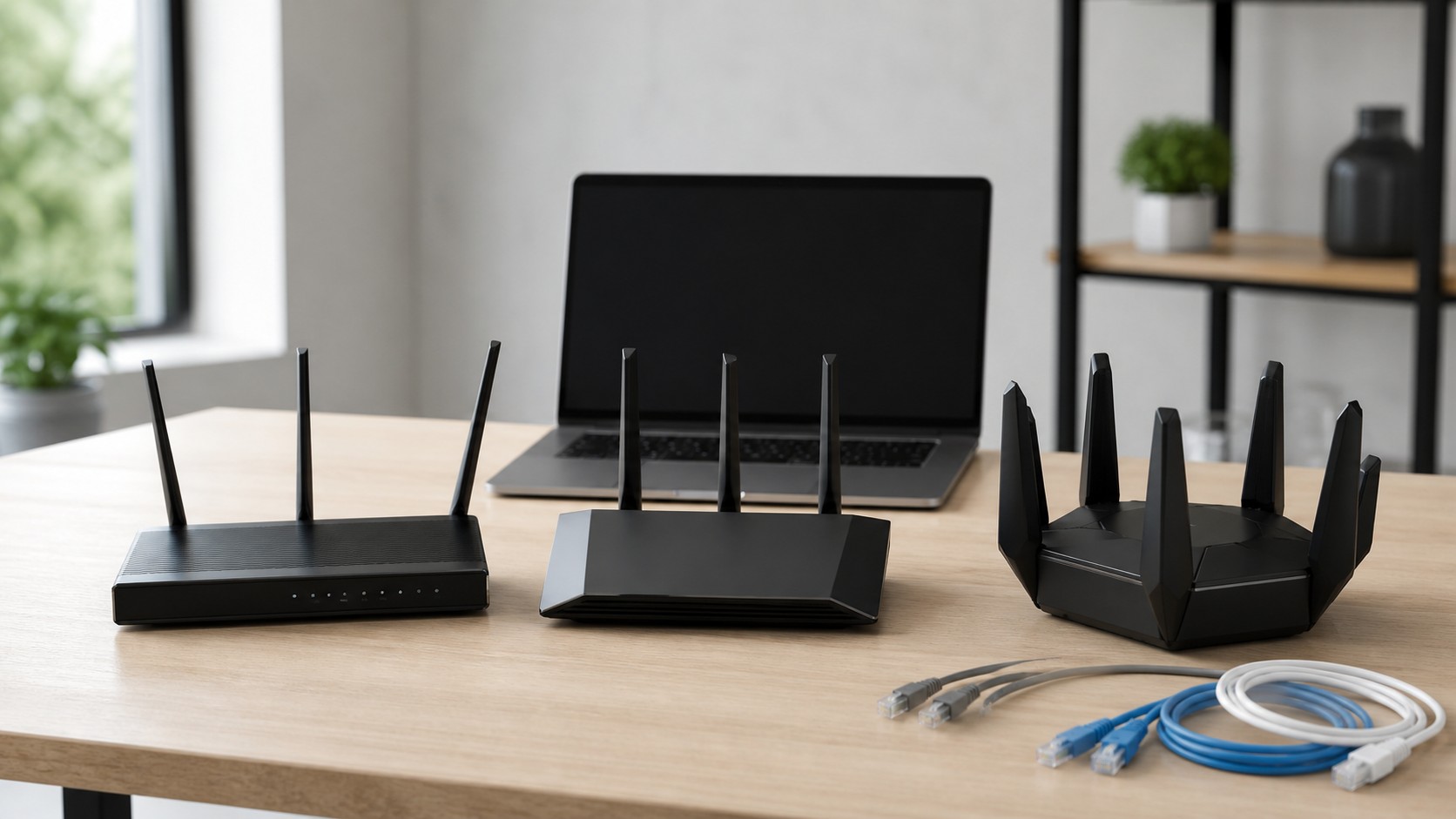
Compatibility is practical, not academic. A phone without the right bands may miss the strongest coverage. A router without current Wi-Fi support may bottleneck a fast internet plan. A business device may need certification before it can use a private wireless network. The standard only helps when the user’s equipment can actually use it.
Resilience And Backup Planning
Resilience is the ability to keep communicating when one path fails. Homes may use a cellular backup for a fiber outage. Businesses may use a second carrier, a second wired provider, battery backup, satellite service, or failover routers. Public agencies may need priority service and hardened sites.
Backup planning works best before trouble starts. Users need to know which devices stay online, how long batteries last, what traffic is prioritized, and whether the backup connection can handle calls, payments, alarms, cameras, or remote work. A backup that has never been tested is only a hope.
Maintenance And Ongoing Review
Networks change after installation. Carriers refarm spectrum, add towers, retire old systems, change plan terms, update routers, and shift traffic patterns as neighborhoods grow. A setup that worked well two years ago may need a new modem, better placement, a different plan, or a second connection.
Ongoing review keeps the service honest. Users can track outages, speed at busy times, upload quality, call problems, device age, and support history. Businesses can add monitoring so they know when failover worked, when latency climbed, or when a provider missed a promised repair window.
Common Misunderstandings
One misunderstanding is assuming that bars equal bandwidth. Signal bars are a rough display of radio conditions, not a complete measure of speed, latency, capacity, or routing. A phone can show decent signal and still struggle if the cell is congested or the uplink is weak.
Another misunderstanding is treating each network generation as a clean replacement. LTE, 5G, Wi-Fi, fiber, satellite, and older systems often coexist. Devices may move between them, carriers may use them together, and coverage may depend on which bands and modes the device supports.
Marketing language can also blur the picture. Words such as unlimited, nationwide, fastest, AI-powered, fiber-like, or future-ready need details. The useful question is what the service does under real conditions, what limits apply, and how the provider proves the claim.
Risks And Tradeoffs
The risk is leaving the network with default settings, weak passwords, old firmware, poor placement, or unmanaged smart-home devices. A bad setup can be slow, unreliable, or easier to attack.
Security is part of the tradeoff. More connected devices and more automated networks create more places where bad configuration, fraud, malware, SIM swapping, data exposure, or denial-of-service attacks can cause harm. Telecom reliability and telecom security now belong in the same conversation.
Cost also deserves attention. A cheaper plan may be fine for casual use and poor for business continuity. A premium plan may include features that a household never needs. The practical goal is matching service quality, support, and price to the real risk of being disconnected.
What To Check Before Making A Decision
Start with location. Check coverage where the service will actually be used: inside the home, at the office, along commute routes, in rural work areas, inside vehicles, and in rooms where calls or devices matter most. Outdoor coverage maps do not always predict indoor performance.
Then check performance type. Download speed matters for streaming and large files. Upload speed matters for video calls, cameras, backups, and creators. Latency matters for gaming, remote desktops, voice, and interactive tools. Reliability matters for everything.
Finally, check support and limits. Look for hotspot rules, roaming terms, deprioritization, equipment fees, installation requirements, cancellation terms, repair timelines, and whether the provider explains outages clearly. The contract and support model can matter as much as the network.
Where The Technology Is Going
Home networks will keep adding smarter mesh tools, Wi-Fi 7 hardware, provider gateways, app-based diagnostics, and device-security features. The basics will remain the same: good placement, current software, strong security, and careful testing.
AI, cloud-native cores, fiber backhaul, Wi-Fi upgrades, satellite coverage, private wireless, network slicing, and edge computing will keep changing how telecom services are packaged. The changes will be most valuable when they solve practical problems: better coverage, steadier latency, faster repair, safer identity, and clearer service commitments.
The future will still be uneven. Dense cities, rural communities, homes, highways, factories, schools, stadiums, and emergency services all need different network designs. One technology will not solve every use case. Strong telecom planning uses the right mix.
Bottom Line
For How to Set Up a Wireless Network at Home (Step-by-Step Guide), the lasting lesson is that wireless performance is local. Router placement, band choice, channel congestion, device age, mesh backhaul, and the internet plan all shape what users feel in a room.
A good Wi-Fi decision starts with testing instead of guessing. Check performance near the router, then in the problem area, then on the device that matters most. That order separates a provider issue from a home-network issue.
The best setup is the one that stays steady during ordinary use: video calls, streaming, gaming, file uploads, smart-home traffic, and busy evening hours. Speed matters, but reliable coverage across the actual space matters more.
A well-set-up home network is quiet, secure, and dependable enough that the people using it stop thinking about the router.